Registration Forms
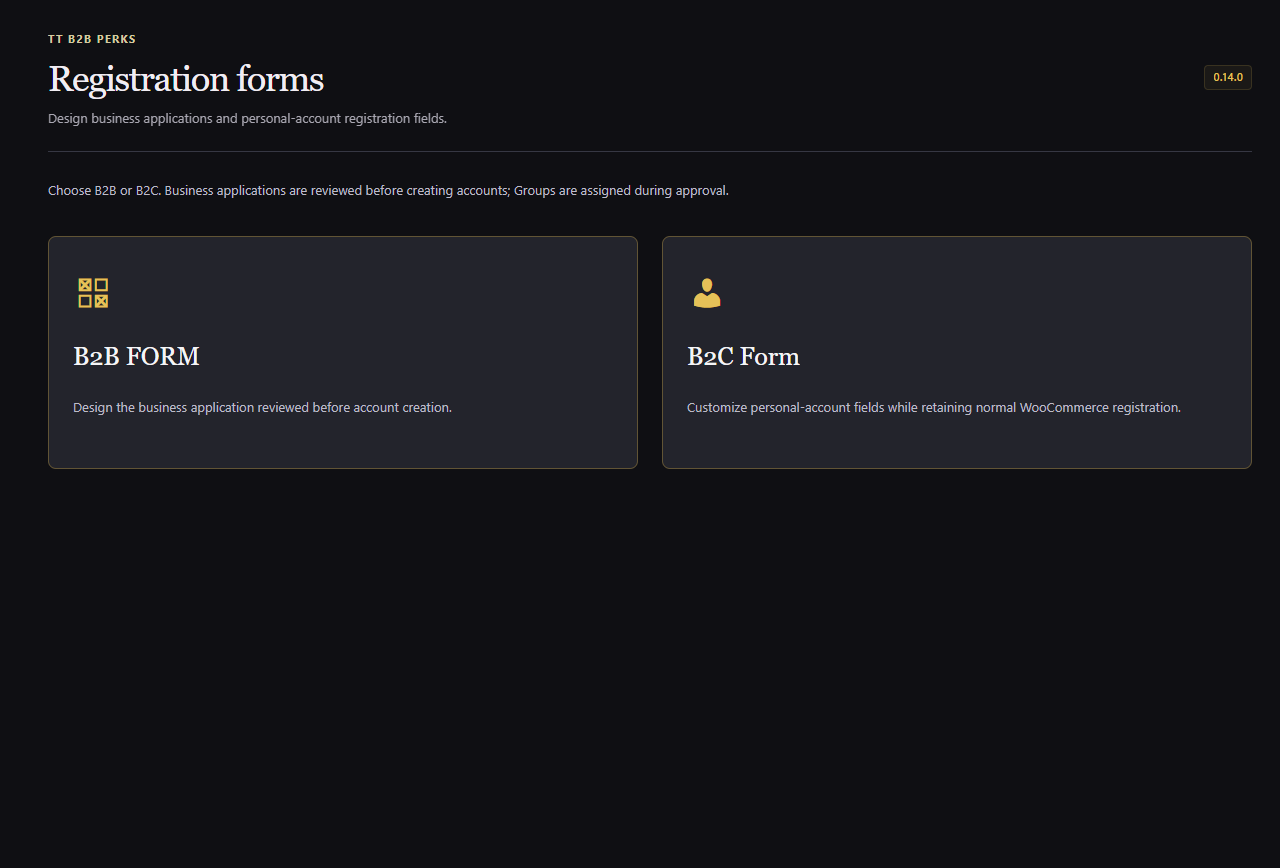
TT B2B Perks › Registration Forms has two forms: B2B FORM, the business application form, and B2C Form, extra fields for ordinary customer sign-up.
The form studio
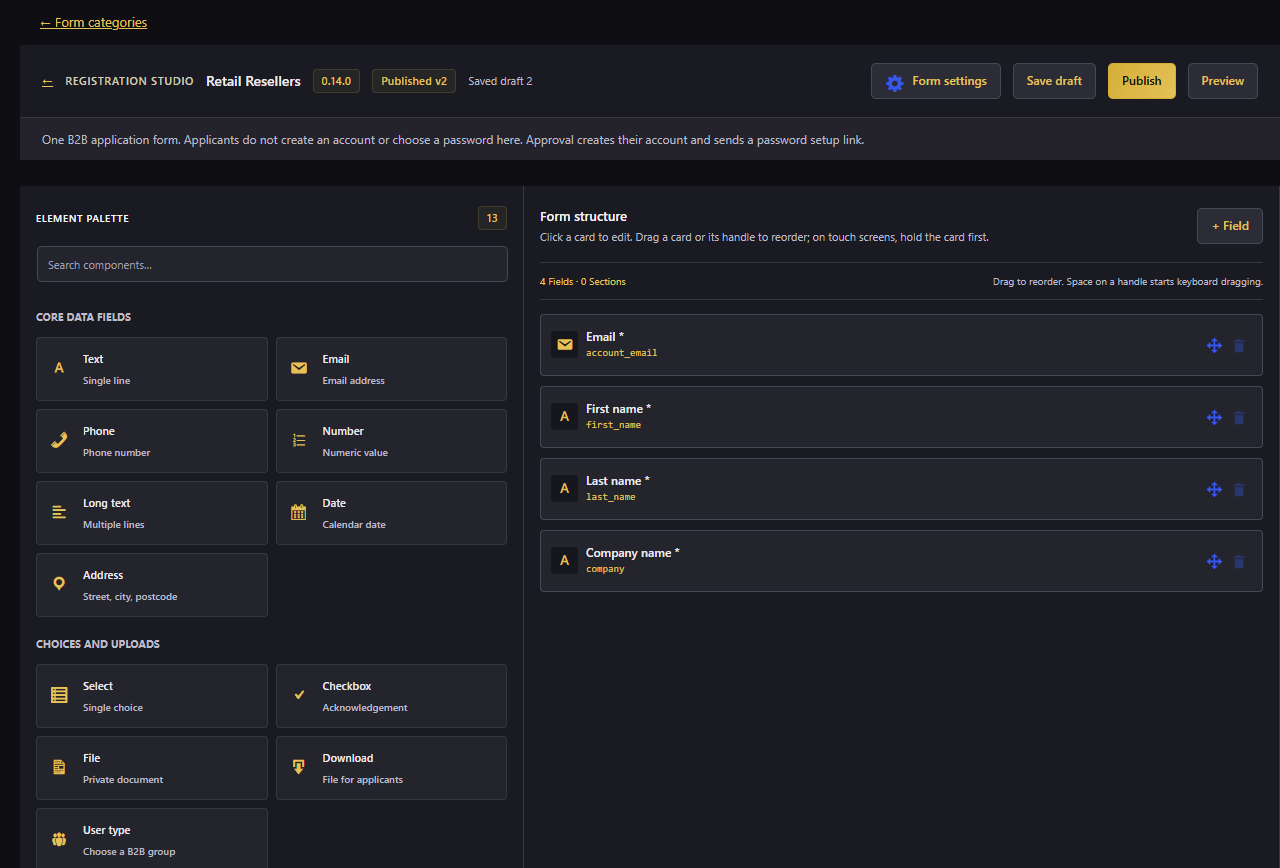
Selecting a form opens the studio: the component palette on the left and the form canvas on the right.
- Add a component by dragging it from the palette onto the canvas.
- Edit a component by clicking its card. Its settings open in a dialog.
- Reorder by dragging a card or its handle. On touch screens, press and hold first. Keyboard buttons are available too.
A form holds up to 30 components besides the fixed fields.
Components
| Component | Notes |
|---|---|
| Text, Long text, Email, Phone, Number, Date | Standard inputs with label, placeholder, help text and required switch. |
| Select, Checkbox | Choices you define. |
| User type | Lets the applicant choose a type of business. |
| Section | A heading with optional instructions that lays out the fields inside it in 1, 2 or 3 columns. The title can be hidden while keeping the columns. |
| File Basic | Upload with a drop zone. Choose allowed types (PDF, JPG, PNG, WEBP, DOCX, XLSX; default PDF, JPG, PNG) and a size limit of 1–5 MB (default 2 MB). Up to three files per application. |
| Address Basic | Address fields with optional Google address suggestions. See Google address autocomplete. |
| Download Basic | Offers a file for the applicant to download, such as terms or a credit form. |
Fixed fields
The B2B form always contains First name, Last name, Email and Company. You can move them and change their labels, but not remove them. New forms also start with Phone. The business form does not ask for a password: approved applicants set one from the approval email.
Layout
Fields have no width setting. Use Sections to place fields side by side; fields outside a Section stack in one column. On phones every Section collapses to one column. Moving or removing a Section keeps its fields.
Conditions and billing mapping
A component can be shown only when an earlier field has a certain value. Components can also be mapped to WooCommerce billing fields (company, first and last name, phone and address), which are filled in when the account is created.
Appearance
Form settings controls the colours and font sizes of labels, inputs, help text and options, plus input background and border colours. Leave a colour empty, or use Theme reset, to inherit your theme's style.
Save, publish and preview
| Action | What it does |
|---|---|
| Save draft | Saves your changes without changing the live form. |
| Publish | Makes the current design live. Applications already submitted keep the version they were submitted with. |
| Preview | Opens the business application page in a new tab, showing the published form. |
The form settings also hold an optional default approval Group, preselected when you review an application, and the switch Show Business application entry on create account; see My Account sign-up.
B2C Form
The B2C Form adds your own fields to the normal WooCommerce registration. WooCommerce keeps its own password and registration settings. Values and files are stored privately with the customer and shown on their Customer details page.