Group price import & export Basic
Use CSV to update product titles, SKUs, descriptions, stock quantities, Group prices and quantity tiers in bulk. Export a template, edit it in a spreadsheet, then review the changes before applying them.
Available from version 0.16.0, on the Basic and Advanced plans. The Description and Variation description columns are available from version 0.17.0. From 0.20.0, each import row requires a product or variation ID. You can change a product title and SKU in the same row. Version 0.21.0 adds Stock quantity.
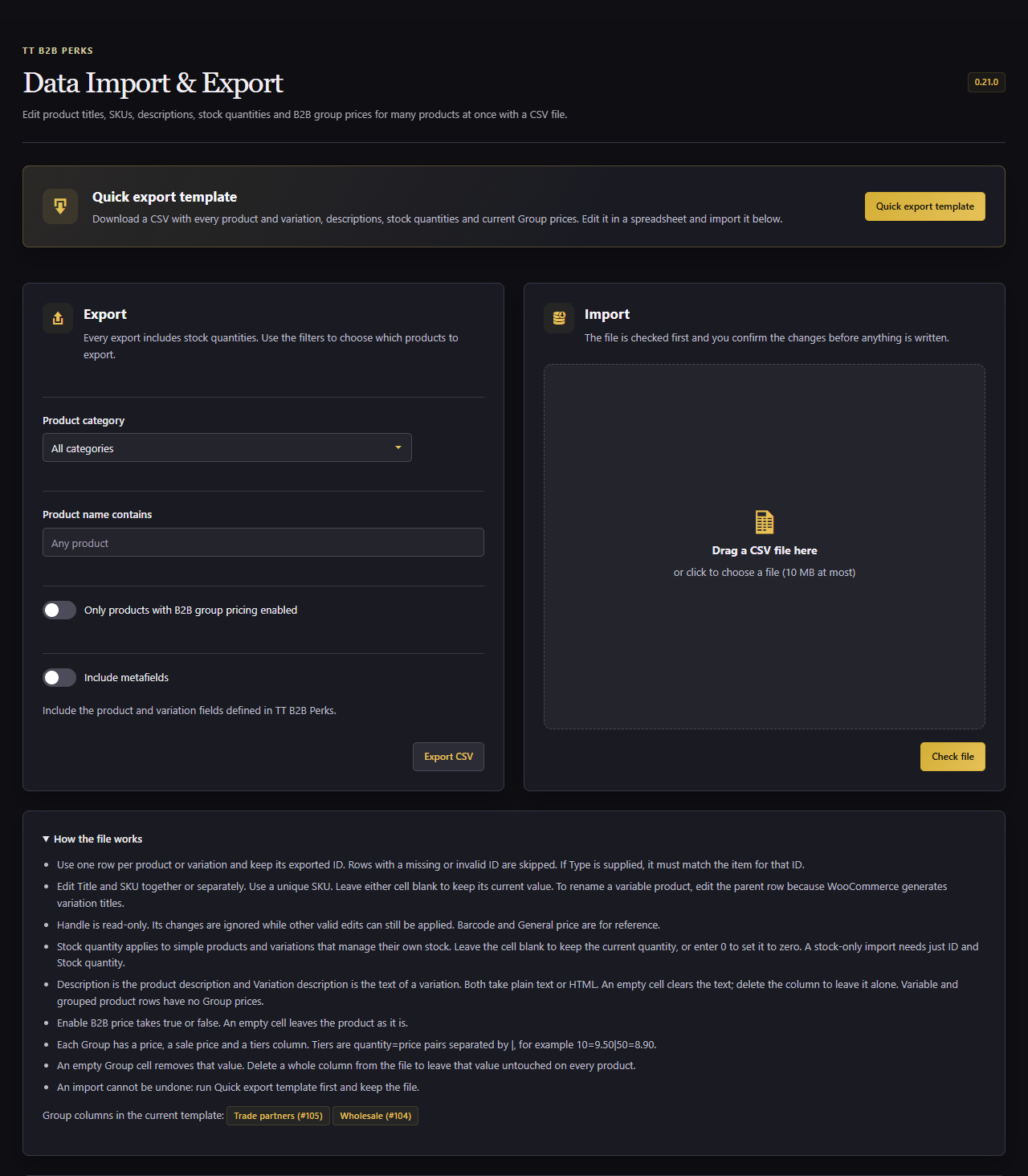
Open TT B2B Perks › Data Import & Export.
Export
- Quick export template downloads one file with every product and variation, their descriptions, stock quantities and the current prices of every Group. Use it as your starting point, and keep a copy as a backup before an import.
- Export can filter by category, product name or B2B group pricing. Every export includes the
Stock quantitycolumn. - Include metafields requires Advanced. It adds the product and variation columns defined in TT B2B Perks › Metafields. The option is off by default.
The file
The first CSV row contains the headers. Each remaining row represents one product or variation. A variable product's parent row comes before its variations. Use parent and grouped product rows for titles, SKUs and descriptions. Set Group prices on the variation or individual product rows.
Keep exactly one ID column and at least one editable column. The ID is the only field used to find the product or variation. If the ID is missing, invalid or unknown, or the supplied Type differs from the item's type, the whole row is skipped.
Column reference
| Column | What it does |
|---|---|
IDRequired | The WooCommerce product or variation ID, written as a positive integer. Keep the ID from the export. Example: 1234 |
TypeOptional | The product type, such as simple, variable, variation or grouped. When supplied it is checked against the matched product.Example: variation |
HandleOptional | The product slug. Variation rows show the parent product's Handle. Changes to this read-only field are reported and ignored. Example: classic-tee |
TitleOptional | Enter a new product title to rename it. WooCommerce generates variation titles from the parent product. A blank cell keeps the existing title. Example: Classic Tee - Red, Large |
DescriptionOptional | The main product description. It accepts plain text or HTML and preserves line breaks. Text in this column on a variation row is skipped with a message. An empty cell normally clears the text. Omit the column to keep the stored description. Example: <p>Soft <strong>cotton</strong> tee.</p> |
Variation descriptionOptional | The option text shown when a customer selects a variation. It accepts plain text or HTML. On other product types this field is skipped with a message. Example: Best seller, ships in 2 days |
SKUOptional | Enter an unused SKU for the product or variation. A blank cell keeps the existing SKU. Example: TEE-RED-L |
BarcodeOptional | Reference only: the product's GTIN, UPC, EAN or ISBN. Ignored by the import. Example: 9400000000017 |
General priceOptional | Reference only: the product's normal WooCommerce regular price, which customers outside a Group pay. Change it on the product screen; the import ignores it. Example: 25.00 |
Stock quantityOptional on import | The current stock quantity for a simple product or variation that manages its own stock. A blank import cell preserves the quantity. Enter 0 to set the quantity to zero. Use a number supported by your store, without thousands separators.Example: 24 |
Enable B2B priceOptional | The product's Enable B2B group pricing switch. Group prices of a product only apply while this is on; when it is off they stay saved but are not used. Accepts true / false, 1 / 0 or yes / no, in any letter case. An empty cell leaves the switch as it is. Leave it empty on the row of a variable or grouped product.Example: true |
Group (#ID) priceOptional | The Group's regular price. Members of the Group see it instead of the general price. An empty cell removes it, and members then start from the general price. Example: 20.00 |
Group (#ID) sale priceOptional | The Group's sale price. When the Group price is also set, the sale price must be lower, or the incompatible price change is skipped. It can be used without a Group price, as a sale below the general price. An empty cell removes it. Example: 18.50 |
Group (#ID) tiersOptional | Quantity tiers. Each tier is minimum quantity=unit price, and tiers are separated by |. Once a cart line reaches a tier's quantity, the tier price applies to every unit in that line, unless a lower price applies (see How the prices work together). Quantities are whole numbers of 1 or more; : is accepted instead of =; tiers may be in any order and are sorted; if a quantity appears twice, the last price counts. An empty cell removes all tiers of the Group.Example: 10=17.00|50=15.50 |
All prices are plain numbers with at most one decimal separator (. or ,) and up to six decimals, for example 9.50, 9,50 or 12. Thousands separators, currency signs, spaces and negative numbers produce a validation message and skip that price field.
When the price, sale price and tiers of a Group are all empty after an import, the product no longer has prices for that Group, and its members pay the general price.
Update stock only
Keep the exported ID for each simple product or variation that manages its own stock. The stock cell is blank on rows that use shared stock or have inventory tracking disabled. Enter the quantity WooCommerce should hold. Empty cells preserve the current quantity.
ID,Stock quantity
101,24
205,0
206,
Group column headers
Every Group has three columns, named Group name (#Group ID) price, … sale price and … tiers, for example Wholesale (#12) price. Only the number in brackets and the last words matter: the import finds the Group by its ID, so the file still works after a Group is renamed, and letter case is ignored. Keep the headers as exported. Columns of a Group that no longer exists are ignored and named in a warning on the review panel.
You can import just one Group's price column. The new price is still checked against the stored sale price.
How the prices work together
For a member of a Group, on a product whose Enable B2B price is on, the unit price is the lowest of:
- the Group price; when the Group has no price of its own, the general price, or the product's WooCommerce sale price while that sale is running;
- the Group sale price;
- the price of the highest tier the cart line has reached.
Dynamic Discount rules then apply on top. With a Group price of 20.00, a sale price of 18.50 and tiers 10=17.00|50=15.50, a member pays 18.50 each for 1 to 9 units, 17.00 each for 10 to 49 units and 15.50 each for 50 units or more.
Example file
This file changes three products for the Groups Wholesale (#12) and Trade (#15). It leaves out the reference columns and the Trade sale price and tiers columns, so those values are not touched.
ID,SKU,Title,Enable B2B price,Wholesale (#12) price,Wholesale (#12) sale price,Wholesale (#12) tiers,Trade (#15) price
101,,Classic Tee,true,20.00,18.50,10=17.00|50=15.50,22.00
102,MUG-02,Classic Coffee Mug,,8.00,,,8.50
205,,Hoodie - Blue,false,,,,| Row | Result |
|---|---|
101 Classic Tee | The row matches product ID 101 and switches on B2B group pricing. Wholesale gets price 20.00, sale price 18.50 and two tiers; Trade gets price 22.00. |
102 Coffee Mug | Product ID 102 gets the title Classic Coffee Mug and the SKU MUG-02. The switch is left as it is. Wholesale price becomes 8.00 and the empty cells remove its sale price and tiers. Trade price becomes 8.50. |
205 Hoodie - Blue | B2B group pricing is switched off, and the empty cells also remove the Wholesale price, sale price and tiers and the Trade price. To switch pricing off and keep the prices, import a file with only the ID and Enable B2B price columns. |
Example with descriptions
This file sets the descriptions of the variable product Hoodie and its two variations, and the Wholesale price of each variation. The first description contains a comma, so it is in quotes; a spreadsheet adds the quotes for you.
ID,Type,Title,Description,Variation description,Wholesale (#12) price
204,variable,Hoodie,"<p>Heavy cotton hoodie, machine washable.</p>",,
205,variation,Hoodie - Blue,,Best seller,24.00
206,variation,Hoodie - Red,,,24.00| Row | Result |
|---|---|
204 Hoodie | The row of the variable product itself. Its description is replaced with the HTML. The Wholesale price stays empty: any price on this row is skipped. |
205 Hoodie - Blue | The Blue option gets the text "Best seller", shown when a customer chooses it, and a Wholesale price of 24.00. |
206 Hoodie - Red | The empty Variation description cell clears the text of the Red option. Wholesale price 24.00. |
Edit titles and SKUs
- Keep the exported
ID, then enter a newTitle, an unusedSKU, or both. Rename a variable product on its parent row. Each variation can have its own SKU. - If the Handle was edited or the requested SKU is already in use, the review flags that field and valid changes in the same row can still be applied.
Rules for editing
- A blank Group or description cell normally clears the value. If description text is in the wrong column and the correct column is blank, the stored description is kept. Omit a column or keep the exported value to preserve it. Blank
Enable B2B price,TitleandSKUcells keep the current values. - You can delete columns and rows you do not need. A file with only
IDand one Group's price column, or onlyIDandDescription, is valid. - Rows can be in any order, and empty lines are skipped. A product may appear only once: a second row for the same product or variation is skipped.
- Files separated by semicolons are accepted, as some spreadsheets save them that way. Save the file as CSV, preferably UTF-8.
- A file can hold up to 20,000 rows and 10 MB.
Import
On Basic, the import skips metafield columns and can still apply other valid catalogue changes.
Keep the exported metafield column IDs and enter values on the matching product or variation rows. Omit a column or cell to keep the stored value. An explicit blank cell clears it. The import review checks numbers and select choices before applying changes.
- Drag the CSV file onto the Import panel, or click the panel to choose it, then click Check file.
- Read the Review import panel. Rows with skipped data counts affected rows. The details list issues by line number. If the row's ID identifies an item and its supplied Type agrees, valid fields on that row can still be imported.
- Click Apply … changes to write the changes, or Cancel import to drop the file. A progress bar shows the import running.
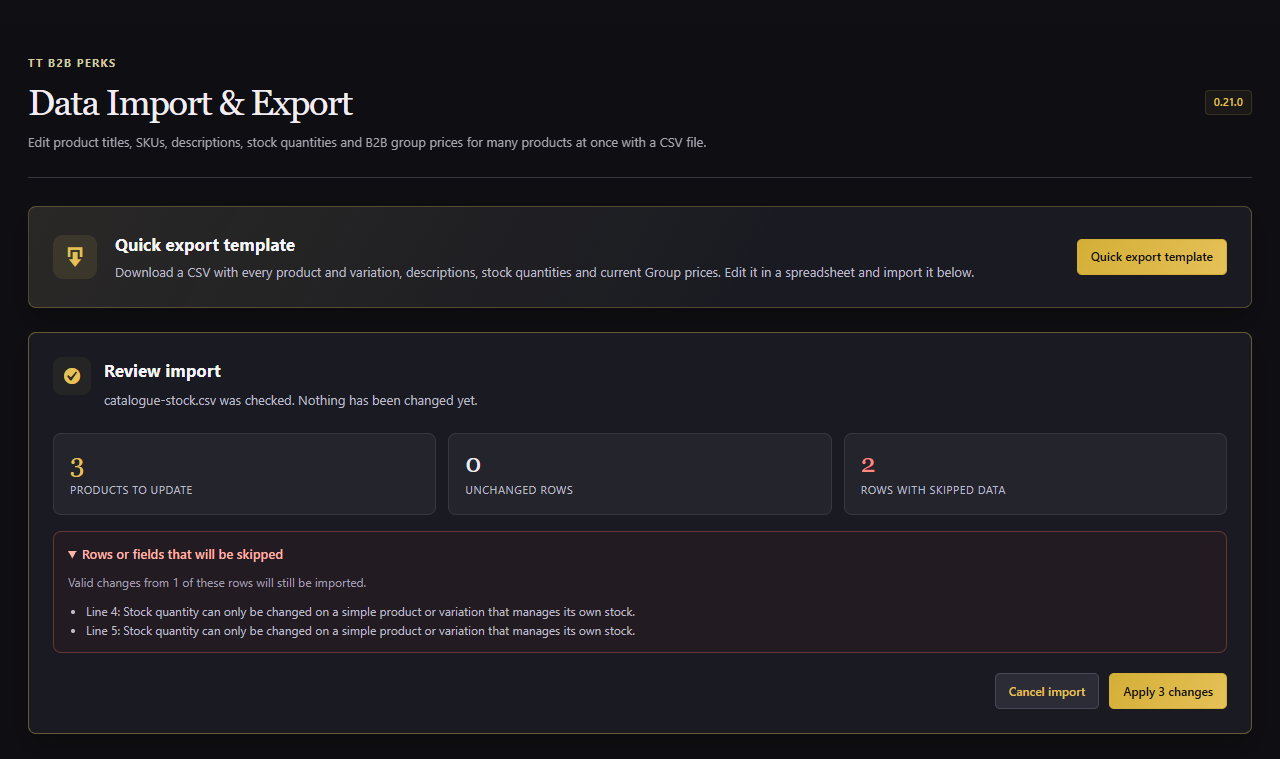
Importing a file you exported and did not edit changes nothing. The review stays available for 30 minutes and only for the manager who uploaded the file. Upload any file checked before the 0.20.0 update again.
An import cannot be undone. Before applying it, keep a copy of your current data from Quick export template.
When product data changes after validation
The import skips a product if a field you planned to change was edited after validation or the new SKU became unavailable. A row with a stock edit is also skipped if the product stops managing its own stock before the import applies it. Export again to see the current values.
History
The list at the bottom of the page shows each export and completed import, with the type, file name, result, time and account. Delete removes the history entry only.
Related
- Group prices & tiers: the same values on the product screen.
- License plans.