Group prices & tiers
Set a different regular price, sale price and quantity tiers for each Group, on any simple product or variation.
Add Group prices to a product
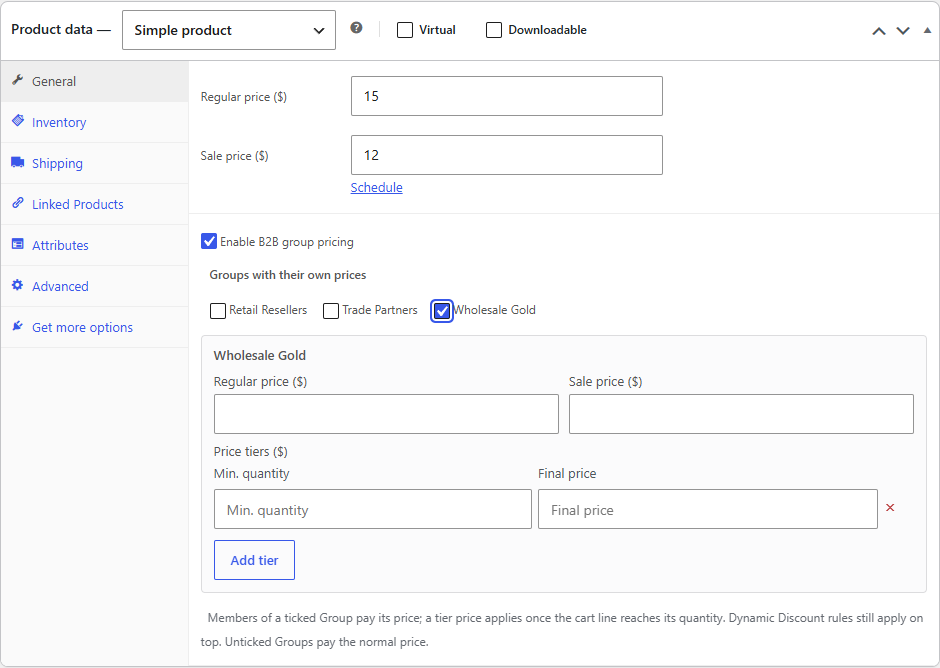
- Edit the product in Products. For a variable product, open the variation.
- Turn on Enable B2B group pricing.
- Tick the Groups that get special prices.
- For each ticked Group, enter a Regular price, an optional Sale price and any quantity tiers (for example, 10 or more at a lower price).
- Update the product.
Groups that are not ticked, B2C customers and logged-out visitors see the normal WooCommerce price.
What customers see
- Shop, product and cart prices use the member's Group price.
- The product page shows a tier table when the product has quantity tiers for their Group.
- The tier price applies in the cart once the quantity reaches the tier.
Combining with Dynamic Discount
Dynamic Discount rules apply on top of the Group price. The customer always gets the lowest of the discount and tier prices; see How prices are calculated.
Orders edited in wp-admin
When you add items or recalculate an order in wp-admin, Group prices and Dynamic Discount are not applied, so your own Group membership never changes a customer's prices. The order keeps the stored product prices, as with any manual WooCommerce order.
Many products at once
To change Group prices and tiers for many products, export them to a CSV file, edit the file and import it back. See Group price import & export Basic.
Do not use B2BKing Group prices on the same products. Prices would be adjusted twice.