Invoices & packing slips Basic
TT B2B Perks produces a tax invoice and a packing slip PDF for any WooCommerce order, not only invoice-payment orders.
Invoice template
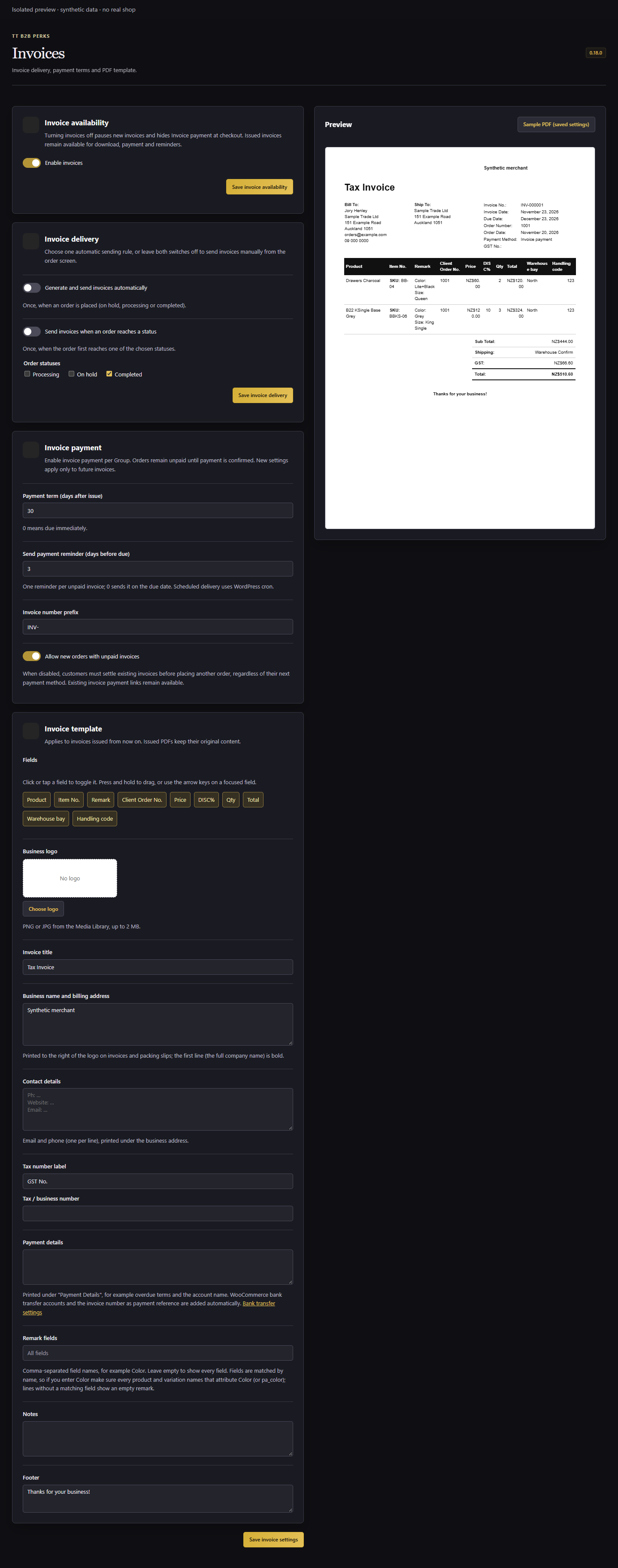
TT B2B Perks › Invoices holds the availability switch, delivery rules, payment terms and invoice template. On desktop, the single-column settings sit beside the live preview. You can also download a sample PDF.
The invoice includes your logo, title, seller address and contact details, customer and document details, and a line table with:
Description Item No. (SKU) Remark Client Order No. Price DISC% Qty Total
followed by totals, comments, payment details and a footer. The Remark column shows variation attributes.
Packing slips
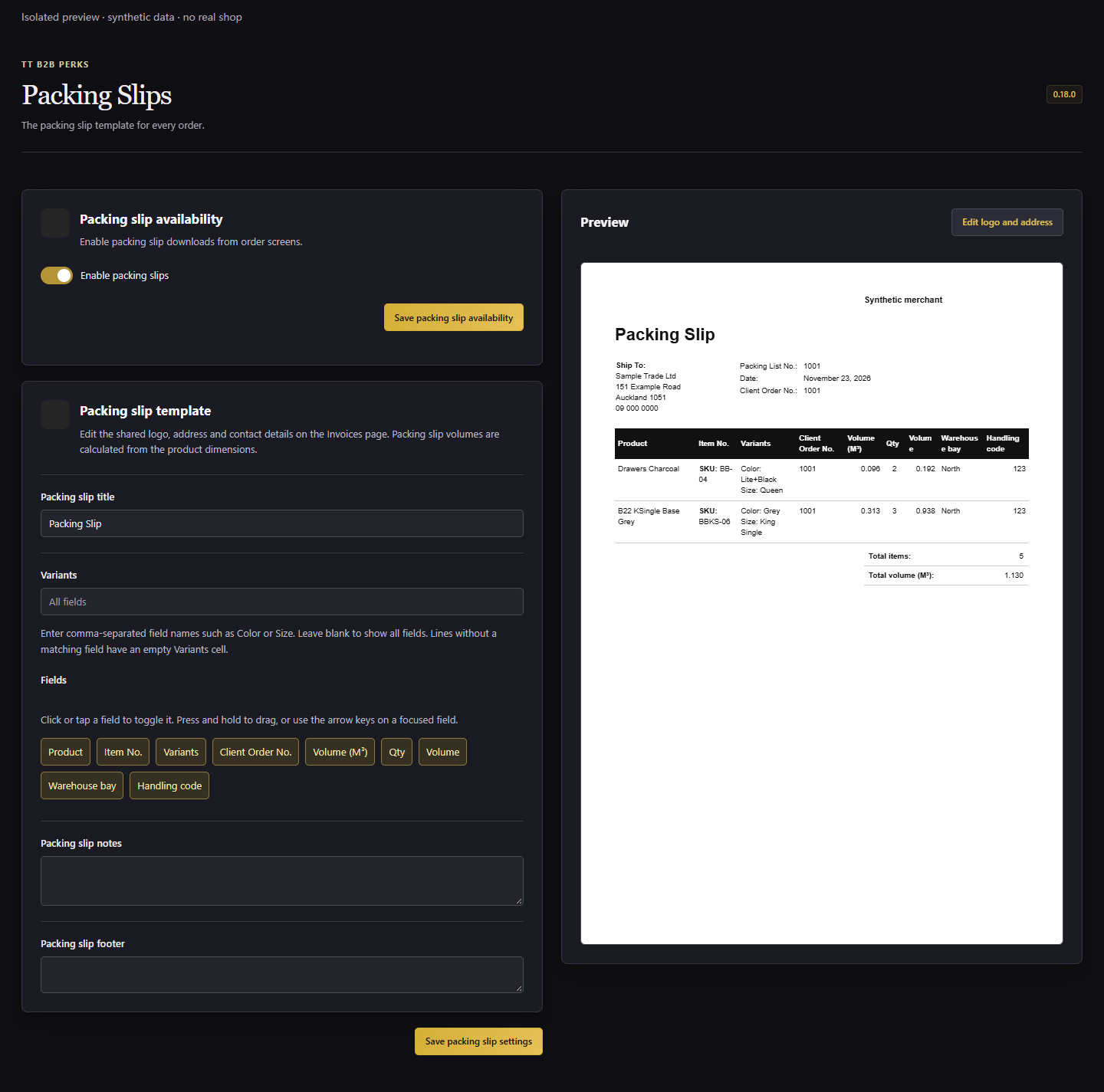
Use Enable packing slips at the top of TT B2B Perks › Packing Slips to make the download available on orders for store managers. New installations start with packing slips off.
Remark fields
The invoice's Remark fields and packing slip's Variants settings select which variation attributes to print. Enter comma-separated attribute names or leave the setting empty to print every attribute.
- Names match the attribute label (
Color) or its key (pa_color), ignoring case. - Use the same attribute name on every product and variation; lines without a matching attribute show an empty remark.
- Invoices issued earlier keep the remark text they were issued with.
Show and sort document fields
Under Fields, select a field to print that column. Press and hold the field to drag it, or focus it and use the arrow keys. The current selection and order appear in the preview before you save.
Metafields
Metafields requires an active Advanced plan. Saved fields remain readable if the plan changes. Previously issued PDFs retain their contents.
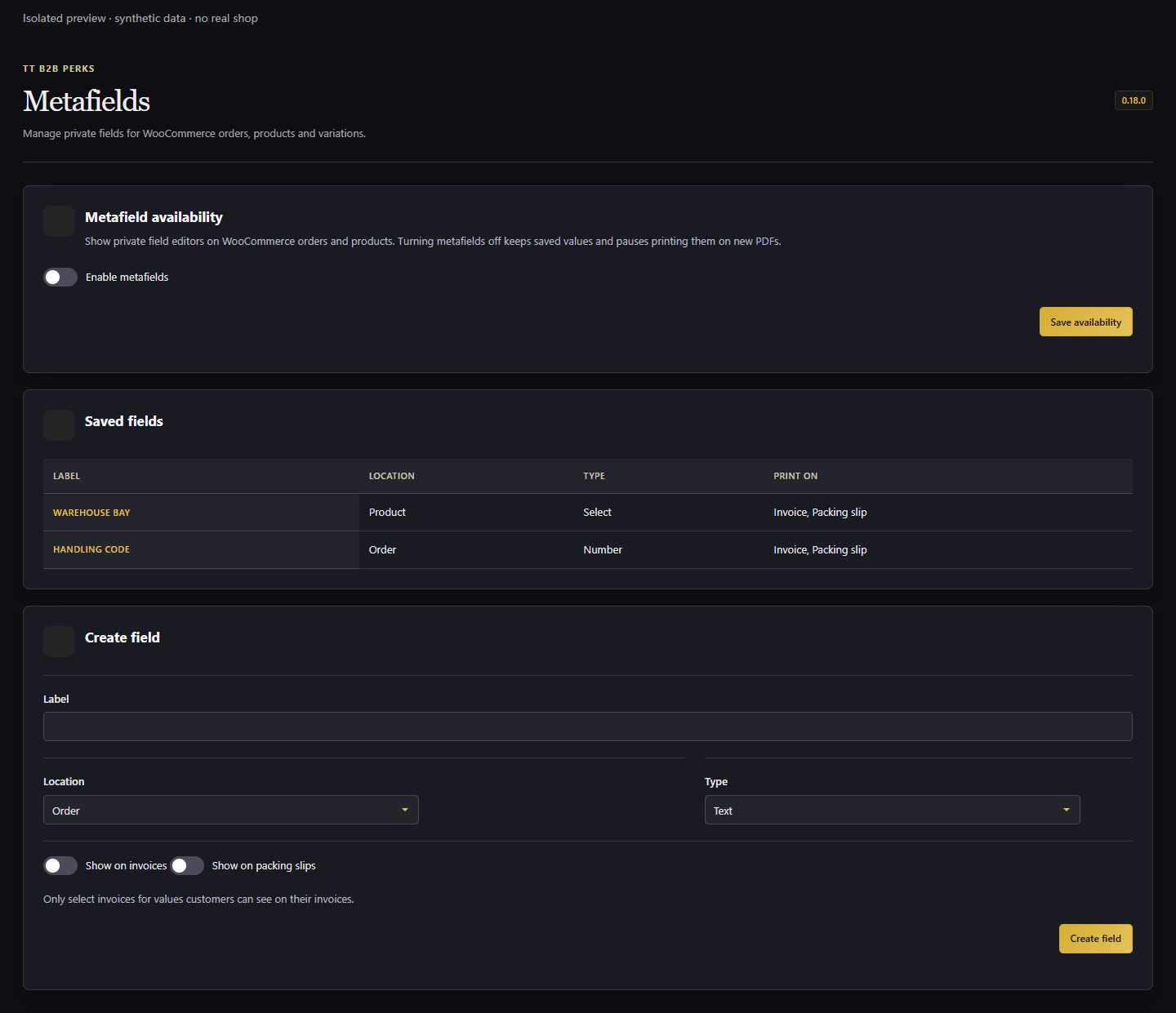
In TT B2B Perks › Metafields, create Text, Number or Select fields for orders, products or variations. Turn on the module to edit values on the relevant WooCommerce screen. Variation values appear in a highlighted panel inside each variation.
To print a metafield, turn on Show on invoices or Show on packing slips in its definition and select it under Fields on that document’s settings page. Each field starts as its own column after the built-in columns. Invoice PDFs may be sent to customers, so only select fields you want recipients to see.
Packing slip volume
Packing slips add a unit Volume (M³) column, calculated from the product's (or parent product's) dimensions, and a line Volume column (unit volume × quantity). Below the table they show Total items and Total volume (M³), to three decimals. Products without dimensions show "—" and are left out of the total. Invoices are unchanged.
Automatic delivery
Under Invoice delivery on the Invoices page, choose whether to send an invoice once when an order is placed or when it reaches a selected status. Both options start off. Leave them off to send manually from the order screen.
On the order screen
Every order has an Invoice & packing slip box:
- Invoice comments printed on the invoice.
- Generate or Update the invoice. Updating keeps the same invoice number.
- Send emails the invoice to the customer. You can send it again at any time.
- Download the invoice and packing slip.
Turning documents off
Turning invoices off pauses new invoices and hides Invoice payment at checkout. Issued invoices stay available for download, payment and reminders. Turning packing slips off hides their download. You can keep editing and previewing both templates while their switches are off.