Back orders Advanced
Keep track of orders that were placed without enough stock: see who is waiting for what, record each dispatch when goods arrive and tell the customer exactly what was sent.
Available from version 0.16.0, on the Advanced plan.
How it works
WooCommerce still decides which products may be sold without stock: set Allow backorders on the product's Inventory tab as usual. When a customer orders more than the stock covers, TT B2B Perks records how many units of each item are still owed. You then record what you send each time stock arrives.
Recording a dispatch never changes stock levels or the order status. Stock was already reduced when the order was placed, and you complete the order yourself when everything has gone out.
Turn it on
Open Settings › WooCommerce setup and turn on Enable back order management.
Orders placed from then on join the list automatically. For orders that were already open, click Find existing back orders at the bottom of the Back Orders page once.
The Back Orders page
Open TT B2B Perks › Back Orders. The page has three tabs.
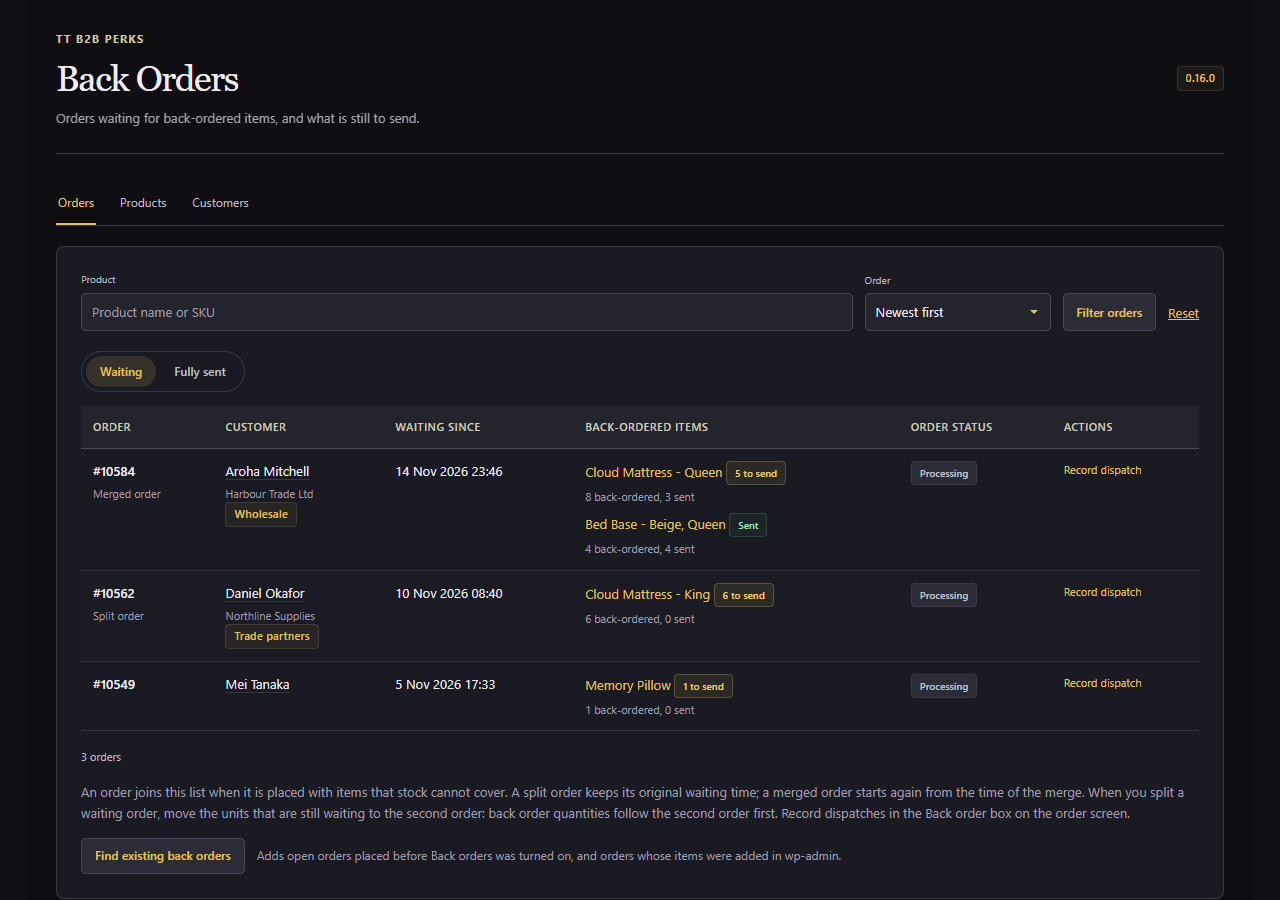
Orders
- Waiting lists orders that still have units to send; Fully sent lists orders whose back-ordered items have all gone out.
- Each row shows the order, the customer and Group, when the wait started, and for every back-ordered item how many units are still to send.
- Filter by product name or SKU, or click a product name in a row to see every order waiting for it.
- Click a customer name to see that customer's back orders. Product and customer filters can be combined.
- Sort Newest first or Oldest first (longest wait).
- Record dispatch opens the order.
Products
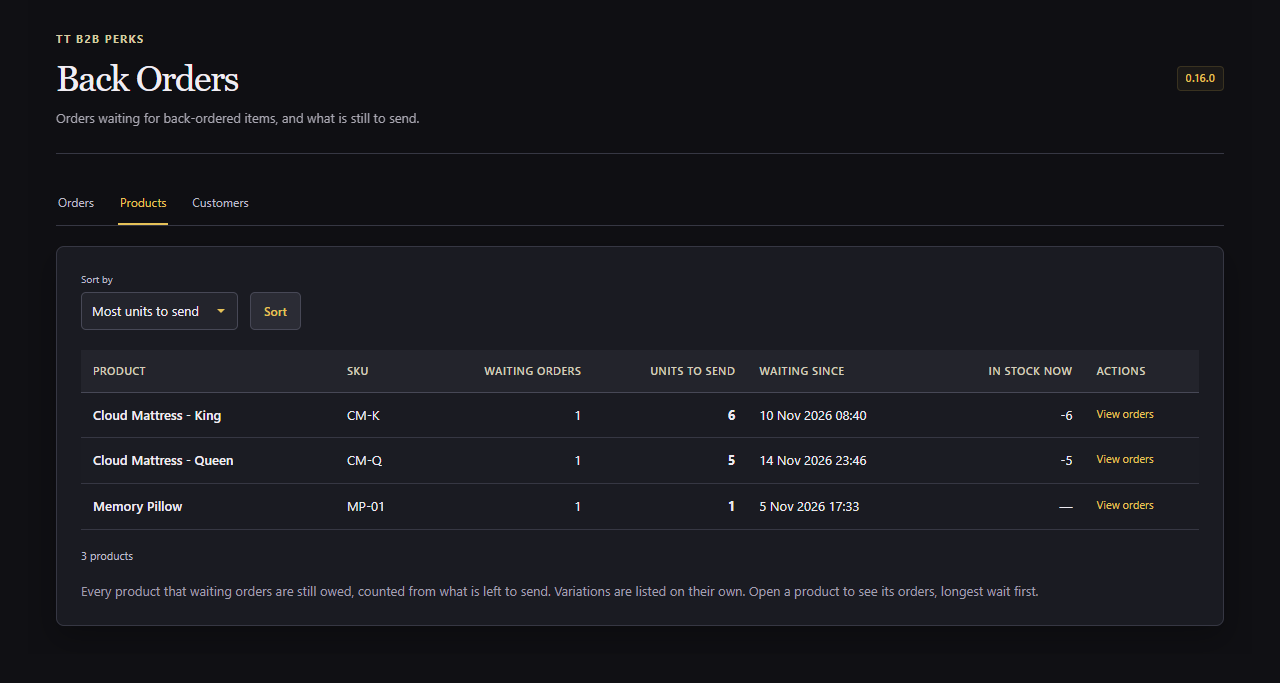
Every product that waiting orders are still owed, with its SKU, the number of waiting orders, the units to send, how long the oldest order has waited and the stock you have now. Variations are listed on their own. Click a product to open its orders, longest wait first.
Customers
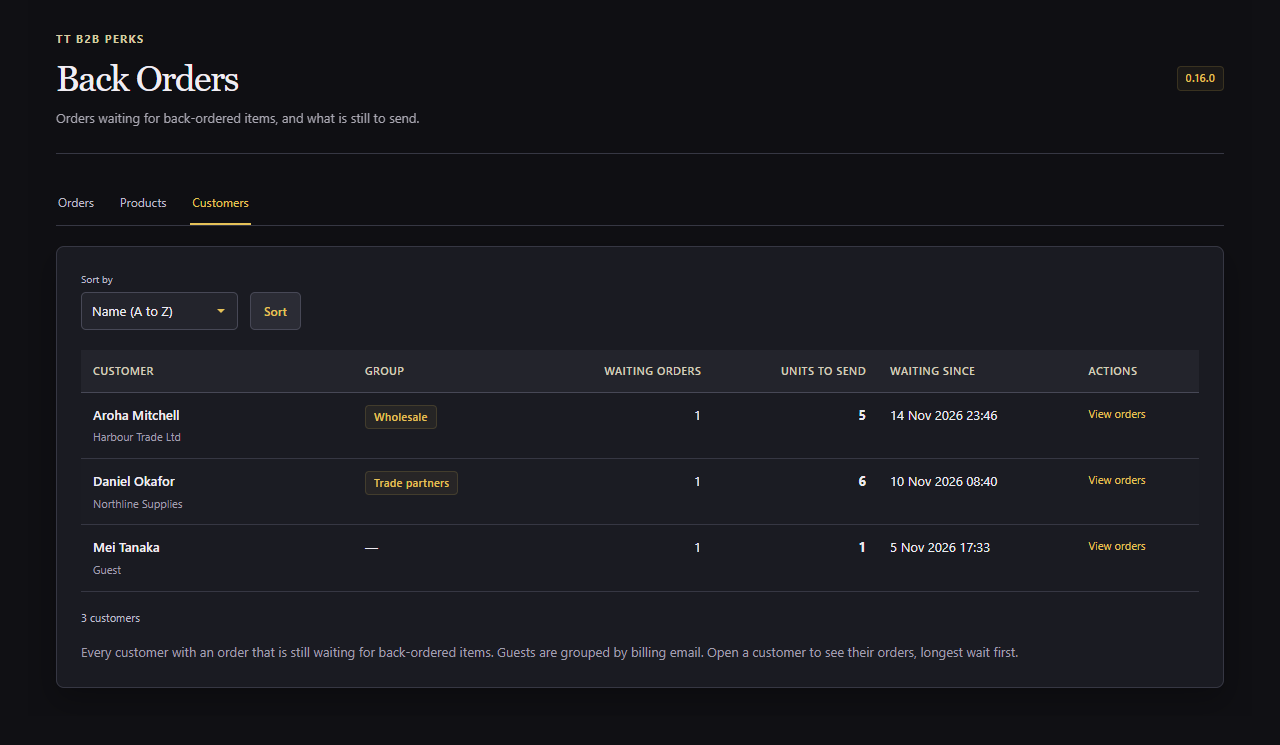
Every customer with an order still waiting, with company, Group, waiting orders, units to send and the longest wait. Guests are grouped by billing email. Click a customer to open their orders.
Both lists can be sorted by Most units to send, Most waiting orders, Longest wait or Name.
Record a dispatch
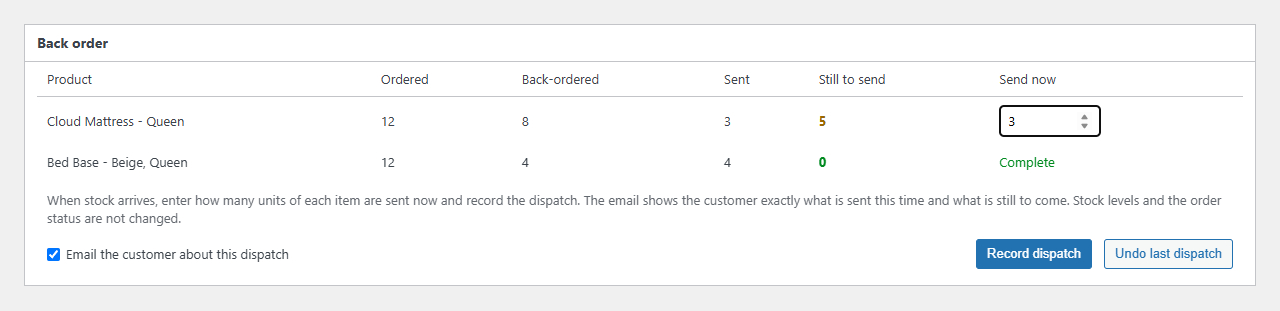
- Open the order. The Back order box sits between the order details and the items.
- In Send now, enter how many units of each item go out this time.
- Leave Email the customer about this dispatch ticked to notify the customer, or untick it.
- Click Record dispatch.
The order gets a note listing what was sent and what is still to come. Repeat for each delivery until Still to send reaches zero; the order then moves to Fully sent.
Undo last dispatch takes back the most recent entry, for example after a typing mistake. The customer is not emailed again.
The customer email
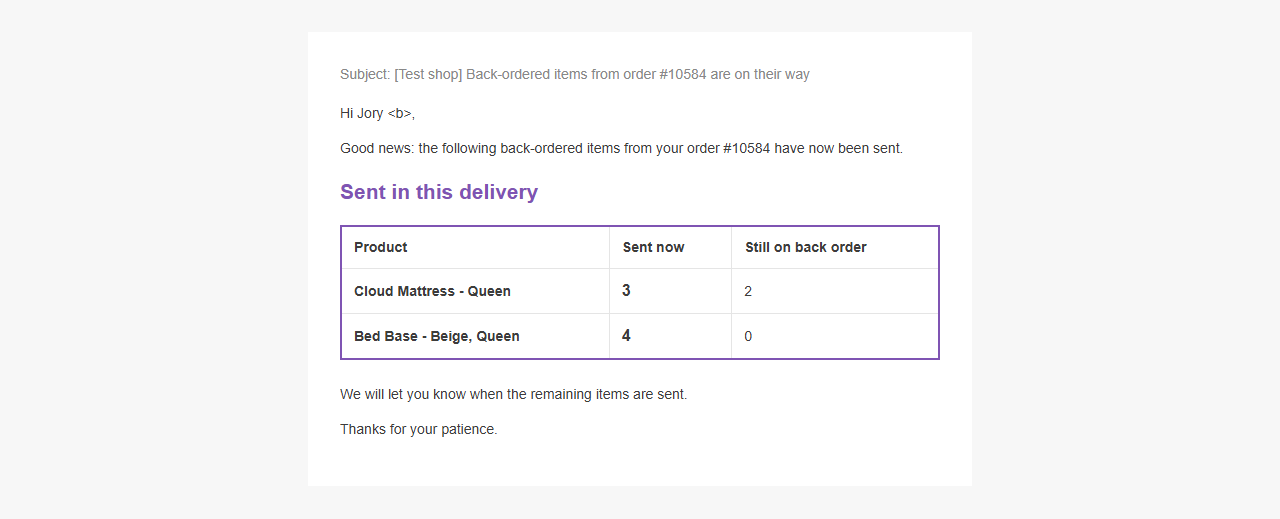
Each dispatch can send the email Back order dispatch. It lists the items sent in this delivery and what is still on back order, followed by the usual order details. Edit its subject, heading and additional content, or turn it off, under WooCommerce › Settings › Emails.
What customers see
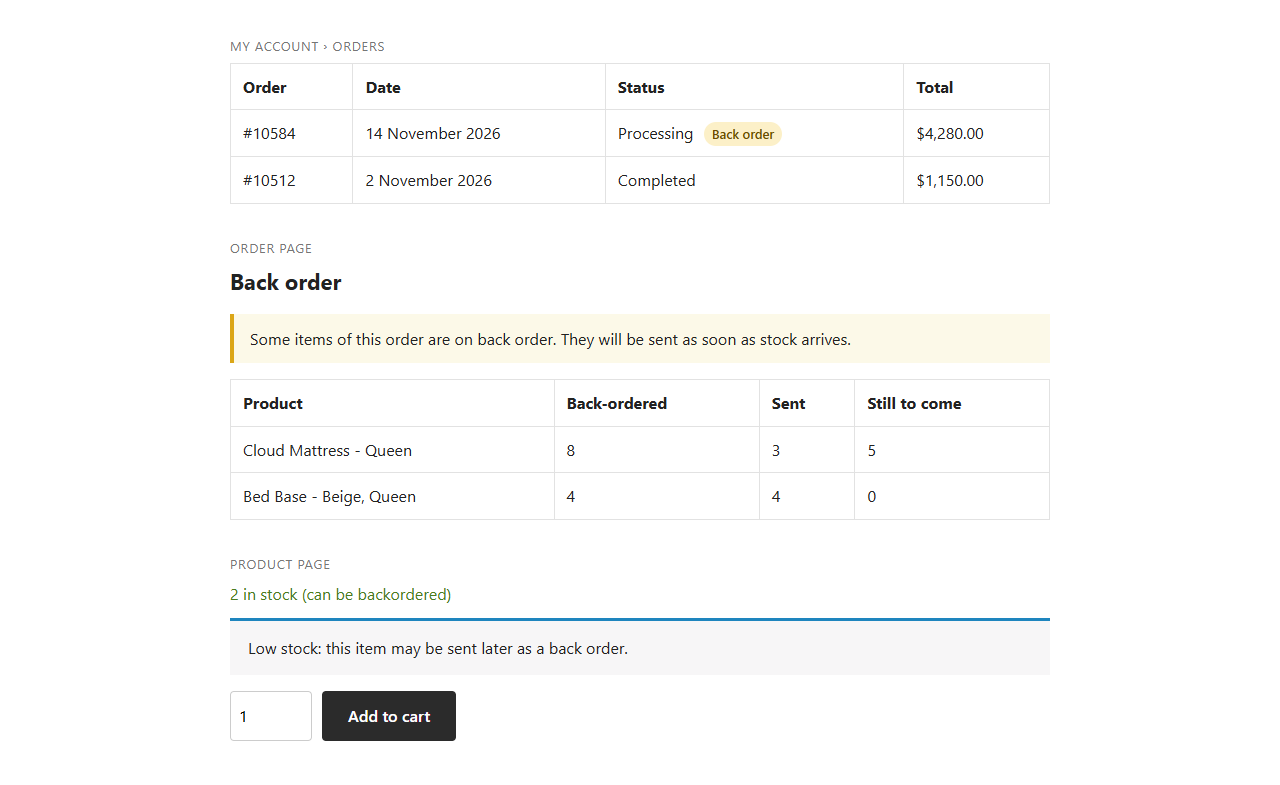
- My Account › Orders: an order that is still waiting shows a Back order badge next to its status.
- Order page: a Back order section lists each back-ordered item with the units back-ordered, sent and still to come.
- Product page: above the add to cart button, the notice "Low stock: this item may be sent later as a back order." It appears when the product allows back orders and its stock is at or under the low stock threshold, or when the product's stock status is On backorder. The threshold is the product's own Low stock threshold, or the one in WooCommerce › Settings › Products › Inventory.
Split and merged orders
- Split: move the units that are still waiting to the second order. Back order quantities follow the second order first, and both new orders keep the original waiting time.
- Merge: the merged order counts as a new order, so its waiting time starts at the merge.
See Order split & merge.
Good to know
- Refunding a back-ordered item lowers what is still to send; cancelled, refunded and failed orders leave the Waiting list.
- The Products and Customers tabs count up to 2,000 waiting orders, those that have waited longest.
- If your license no longer includes Back orders, quantities of new orders are still recorded, so the list is complete again when the plan is restored.