Order split & merge Advanced
Split part of an order into a new order, for example to ship available items now, or merge several orders from the same customer into one.
Available from version 0.14.0.
Settings
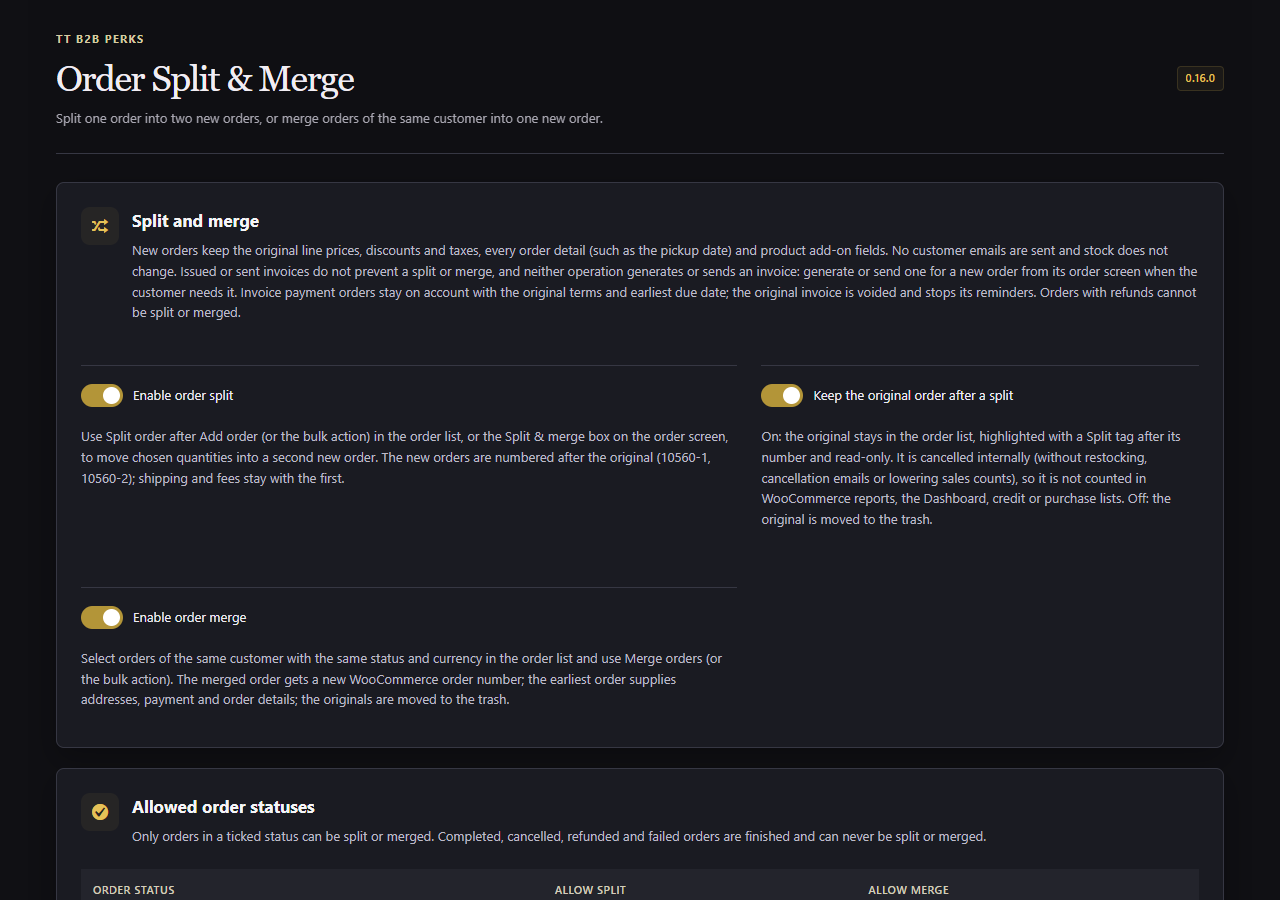
Open TT B2B Perks › Order Split & Merge.
| Setting | Default | Meaning |
|---|---|---|
| Enable order split | Off | Allows splitting. |
| Keep the original order after a split | On | On: the original stays in the order list, read-only and tagged. Off: the original is moved to the trash. |
| Enable order merge | Off | Allows merging. |
| Allowed order statuses | Pending payment, On hold, Processing | Only orders in a ticked status can be split or merged. Statuses added by other plugins are listed too. Completed, Cancelled, Refunded and Failed are shown as Locked and cannot be ticked: finished orders are never split or merged (from version 0.16.0). |
Split an order
- Open the order, or use Split order in the order list.
- In the Split & merge box, choose how many of each item to move.
- Confirm. The items are divided into two new orders numbered after the original, for example
10560-1and10560-2. Shipping and fees stay with the first.
Line amounts and taxes are shared by quantity and always add up to the original. Nothing is re-priced. Addresses, payment details, order details such as a pickup date, and product add-on fields are copied. A new order can itself be split again.
In the order list, a kept original is tagged Original order and each part is tagged Sub order with the number it was split from. The kept original is not counted in reports, the Dashboard, credit or purchase lists.
Merge orders
- In the order list, select orders from the same customer with the same status and currency. From version 0.16.0 the orders must also be all paid or all unpaid, with the same payment method.
- Choose Merge orders (or the bulk action).
- A new order is created with all lines, shipping and fees. The earliest order supplies addresses, payment and order details; customer notes are joined. The originals are moved to the trash.
Invoices, stock and emails
- No customer emails are sent and stock does not change.
- Issued or sent invoices do not prevent a split or merge, and neither operation creates or sends an invoice. Generate one for a new order from its order screen when needed.
- Invoice payment orders stay on account with the original terms and the earliest due date. The original invoice is voided and its reminders stop.
- Orders with refunds cannot be split or merged. An order with a negative fee (a discount added as a fee) cannot be split.
- Back orders: see how back order quantities and waiting times follow a split or merge.