Site Verify Basic
Site Verify turns a popup into a gate: visitors must agree before they use the site, for example to confirm their age or accept your terms.
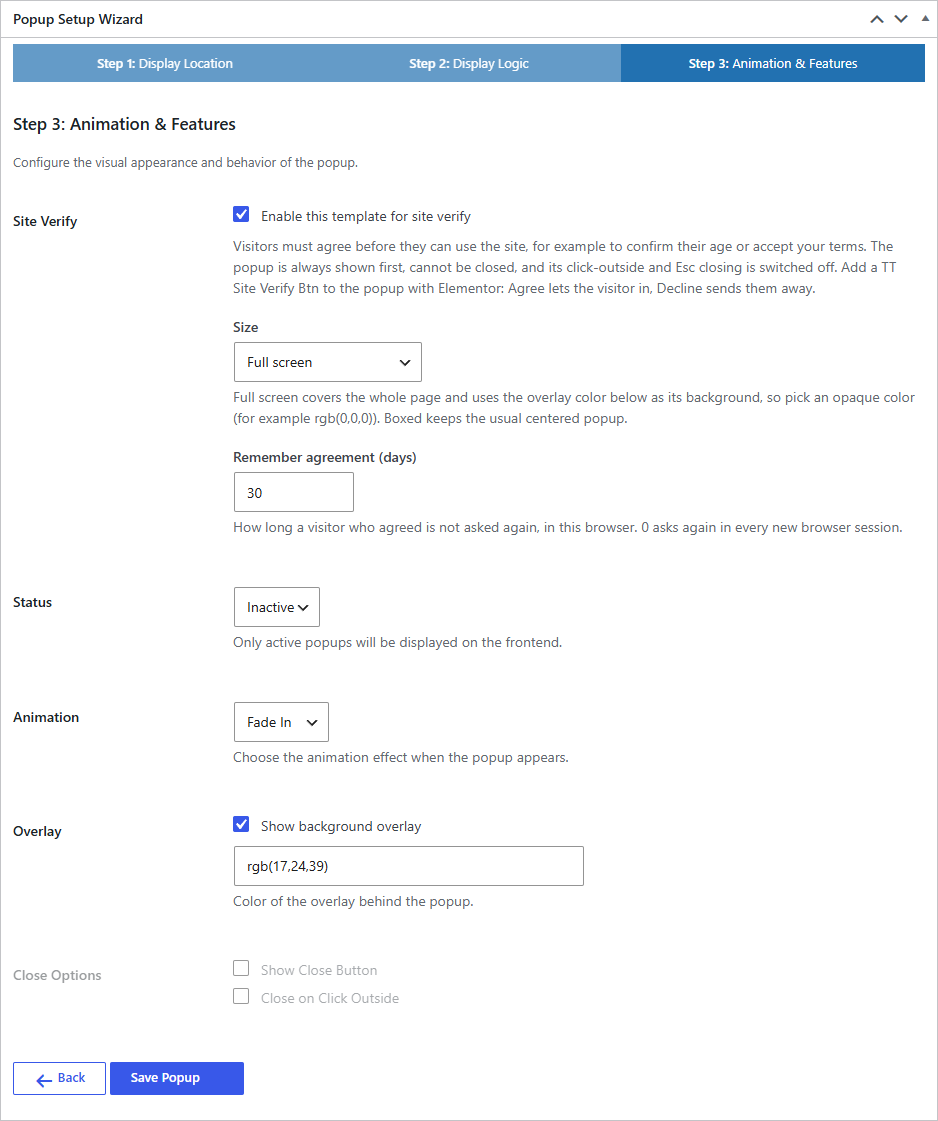
Set up a Site Verify popup
- Create a popup and choose its display location in Step 1.
- In Step 3, tick Enable this template for site verify.
- Choose the Size: Full screen (default) or Boxed (centered popup).
- Set Remember agreement (days). 0 asks again in every new browser session.
- Set Status to Active and click Save Popup.
- Edit the popup with Elementor, write your message and add a TT Site Verify Btn.
How it behaves
- It always shows first when the page loads. Trigger, frequency, priority and close options are set automatically.
- It cannot be dismissed by clicking outside, pressing Esc or a close button.
- Full screen uses the overlay color as its background, so choose an opaque color such as
rgb(0,0,0). - Agree lets the visitor in and remembers the choice in a cookie in their browser for the days you set.
- Decline sends the visitor to a blank page or to an address you choose.
- Your other popups wait until the visitor has agreed.
A notice, not a security barrier. The page content is still in the page source, and with scripts turned off the gate simply stays in front of the page. Do not rely on Site Verify to protect restricted content.
On an existing site
If TT Site Verify Btn is missing in Elementor, turn it on in Widget Manager under Navigation & Interaction. The widget is offered only while a popup is being edited.