Dashboard & Widget Manager
The Dashboard is a read-only overview. Widget Manager is where you choose which widgets appear in Elementor.
Dashboard
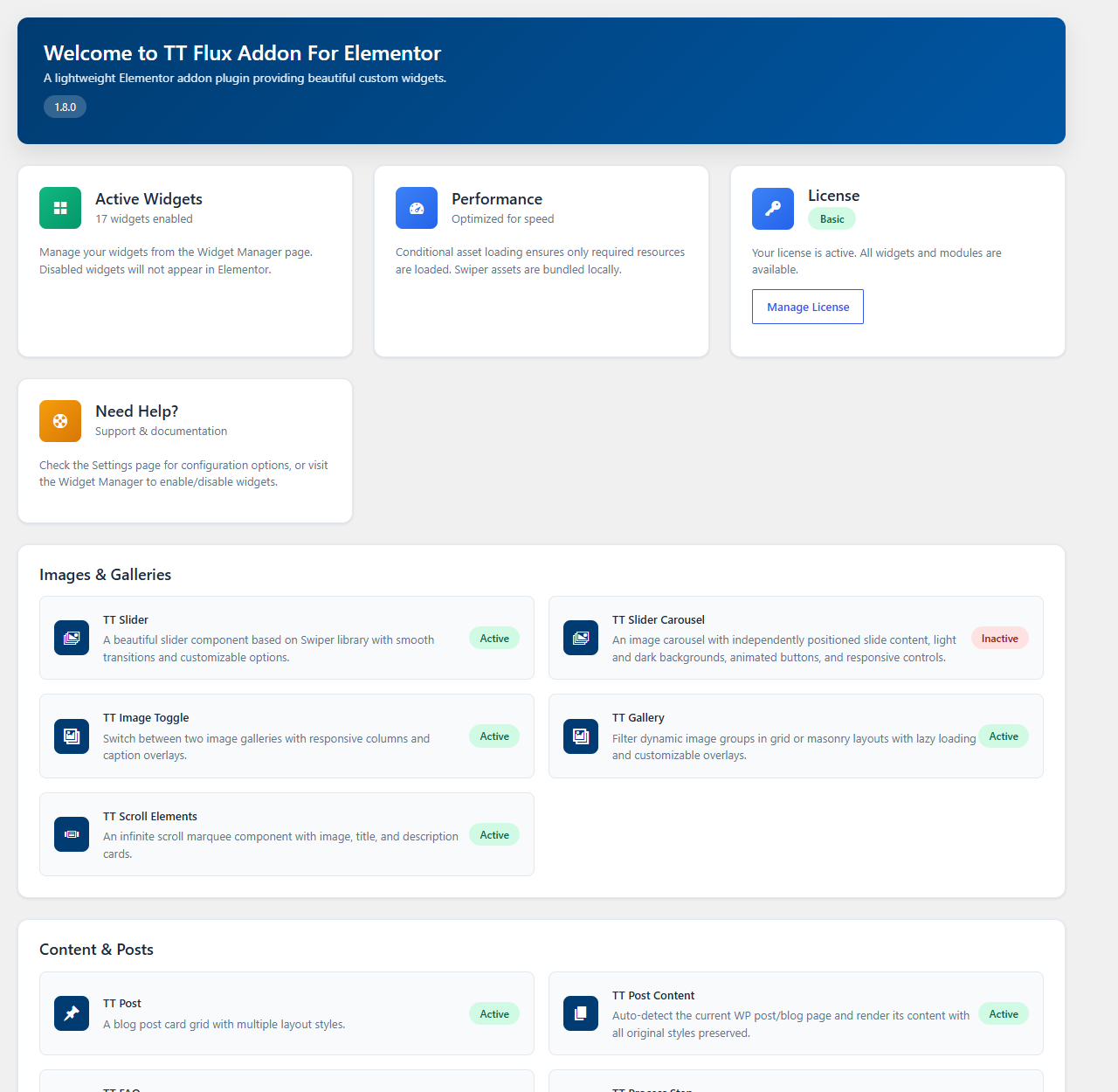
Open TT Flux › Dashboard. It shows:
- Active Widgets: how many widgets are enabled.
- Performance: assets load only where needed and the slider library is bundled.
- License: your current plan, with a link to the License page.
- Every widget grouped by category, each marked Active or Inactive. Widgets that need a higher plan show a lock and the plan name.
Widget Manager
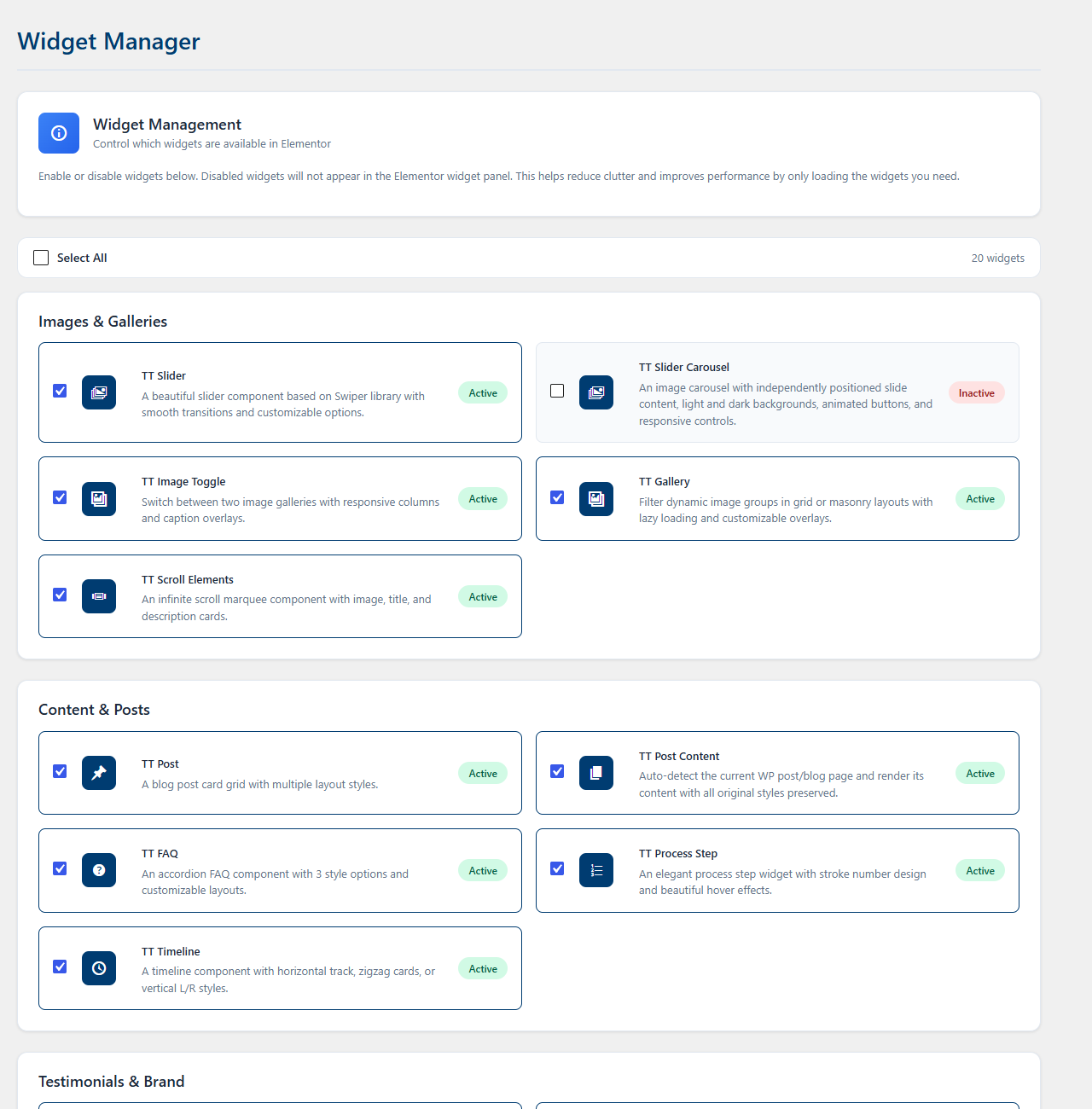
- Open TT Flux › Widget Manager.
- Tick or untick widgets. Select All toggles every widget your plan allows.
- Click Save Changes.
A disabled widget disappears from the Elementor panel and is no longer shown on pages where it was placed. Fewer enabled widgets keep the Elementor panel tidy.
Widgets outside your plan are shown locked: they cannot be switched on or off, and new copies cannot be added in Elementor. Their saved state is kept, so they return as they were when you upgrade.
New widgets after an update start off. Your saved selection is never overwritten, including a selection with every widget turned off. Turn new widgets on here.