Creating a bundle
A bundle is a list of products with quantities, a discount and an optional schedule.
The bundle list
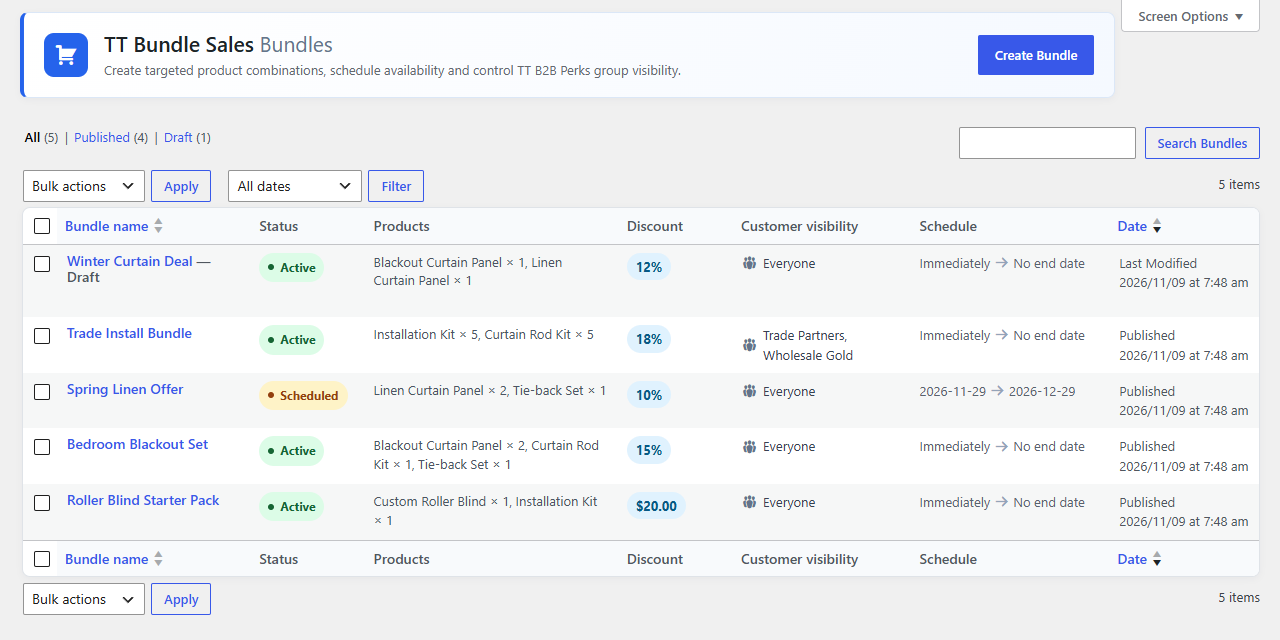
Each row shows the status (Active, Scheduled or Expired), the products and quantities, the discount, who can see it and its schedule.
Bundle products
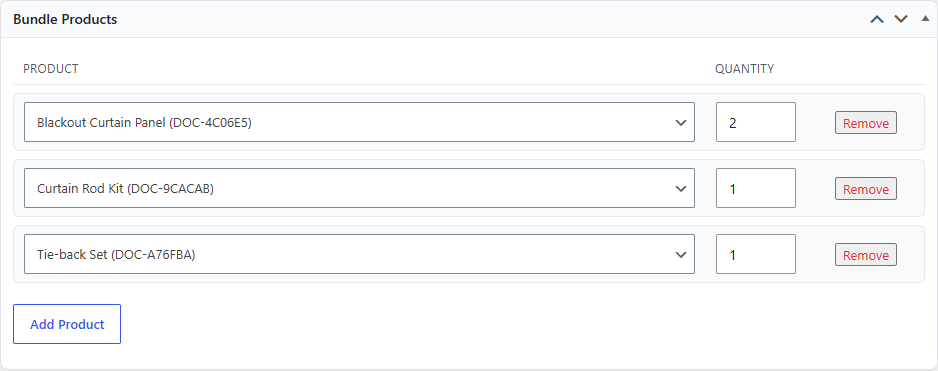
- Click Create Bundle and give the bundle a name. Customers see this name on the offer and in the cart.
- In Bundle Products, click Add Product, search for a product and set its Quantity.
- Repeat for every product. Use Remove to take one out.
Pricing
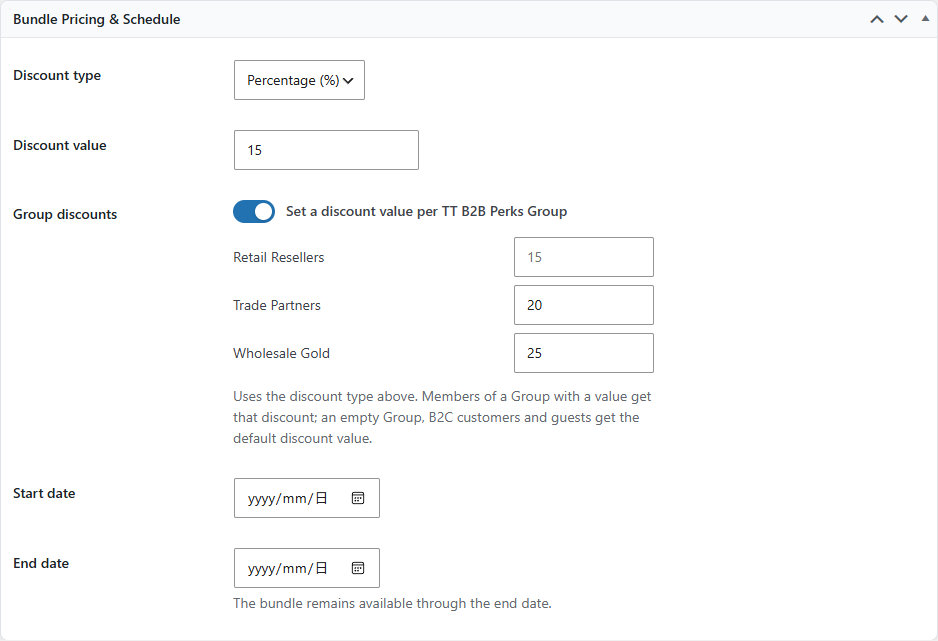
- Discount type: Percentage (%) off the total, or a Fixed amount off the total.
- Discount value: the default discount for everyone.
The bundle price is worked out live from the current prices of its products times their quantities, minus the discount. If a product's price changes, the bundle price follows.
Schedule
Leave the dates empty to run the bundle immediately and without an end. Set a Start date to schedule it; set an End date to stop it. The bundle remains available through the end date.
Publish
Click Publish. Only published bundles inside their schedule are offered. Save as a draft to prepare an offer without showing it.
The linked product. Each published bundle keeps a hidden, virtual WooCommerce product named "[BUNDLE] …" that represents it in carts and orders. It is not shown in your catalogue. Do not edit or delete it; edit the bundle instead.